
FAQ
Alerts Membership (SMS & Email)
What do I receive alerts on with the Alerts membership?
With an Alerts membership you will recieve:
- Real Time triggers from the Watch List
- Intraday trade ideas and favorite set-ups from BPT management
- Text message & email alerts to the GDX system featured in the May 16th, 2010 Newsletter. CLICK HERE TO VIEW
Please note that alerts for the Mechanical Systems listed in the Premium Content area is currently NOT included in this product.
Can I receive text and email alerts?
Yes. Upon being signed up your account should be enabled to receive emails to the address that we have on file for you. Then you will have the option of inserting your cell phone number and carrier and sending yourslef a test text with a confirmation number inside. Upon receiving that text and inserting the confirmation number back into the box requesting it under the Alerts Manager you will be cofirmed and start receiving SMS alerts. You will also have the ability to enter into the Alerts manager and enable and disable the text and email alerts as you wish. You can also disable both and receive no alerts for a time being (maybe an option you would want for a period of time where you will be on vacation).
I am not receiving the email alerts, why?
Email alerts should have defaulted to on upon signing up but in order to diagnose this problem you can:
- First check in the Alerts Manager that you have emails Enabled, you will want the field to have "Yes" chosen.
- Second make sure the emails are not being directed into your Spam or Junk email boxes
- Lastly, add our email server, members@breakpointtrades.com, to your "safe" list.
You might be receiving our Nightly Newsletter emails but not the Alerts, still follow the steps above as they have normally solved the problem. If you still have issues receiving emails then immediately contact a BPT representative so they can review your account.
I am not receiving SMS (text) messages after signing up and paying, why?
If you have signed-up for the Alerts platform and received a payment verification yet are still not receiving SMS alerts then please:
- First log into the Alerts Manager and make sure that you have added your Cell Phone Number and Carrier into the system
- Then make sure that you sent yourself a test message containing the confirmation or key number needed to activate the system (the button to send is located underneath where you enter the number)
- If you have done the first two and received no text message then please log in and select the resent verification message.
- After receiving the verification number, add it into the requested box and submit.
If after completing all those steps you are still unable to receive SMS messages or the confirmation (key) number then please immediately contact a BPT representative to help.
How do I sign-up and manage my Alerts Membership?
Your first stop should be to view the video we created to help members through the sign-up and management process. If after watching this video you have additional questions not also answered in this FAQ section then please contact a BPT representative.
When will my Alerts Subscription be renewed?
The Alerts subscription is like a regular Membership in that our system will auto-renew your membership on your anniversary using the PayPal account or Credit Card on file unless the membership is canceled 24 hours prior to the anniversary date. To cancel the Membership you would go to the Memberships page but will be the same process as canceling a membership (detailed later in the FAQ with screen shots).
Member Account / Billing
How do I edit my member profile, account information and credit card information?
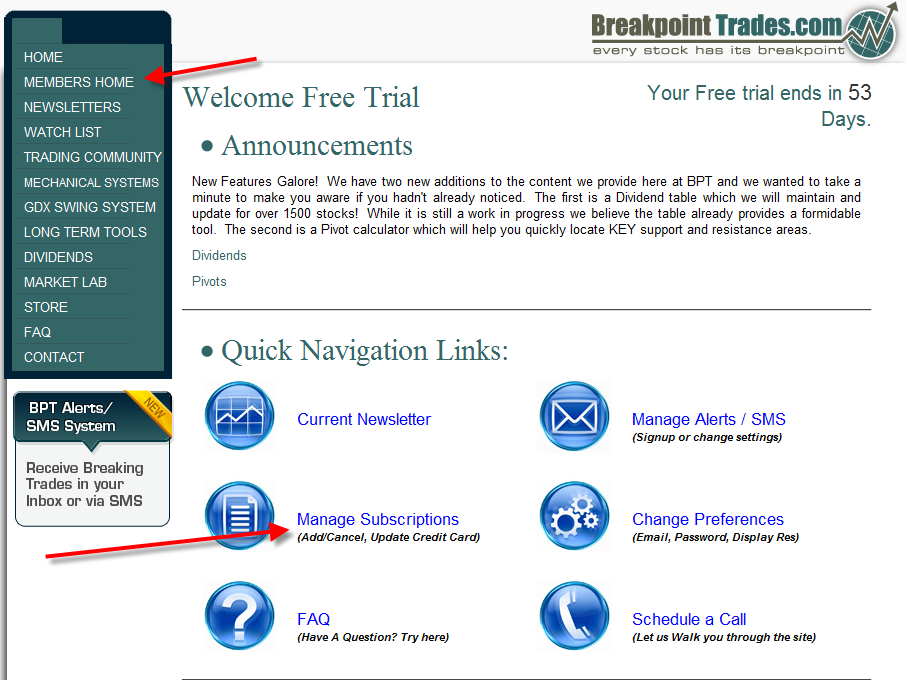
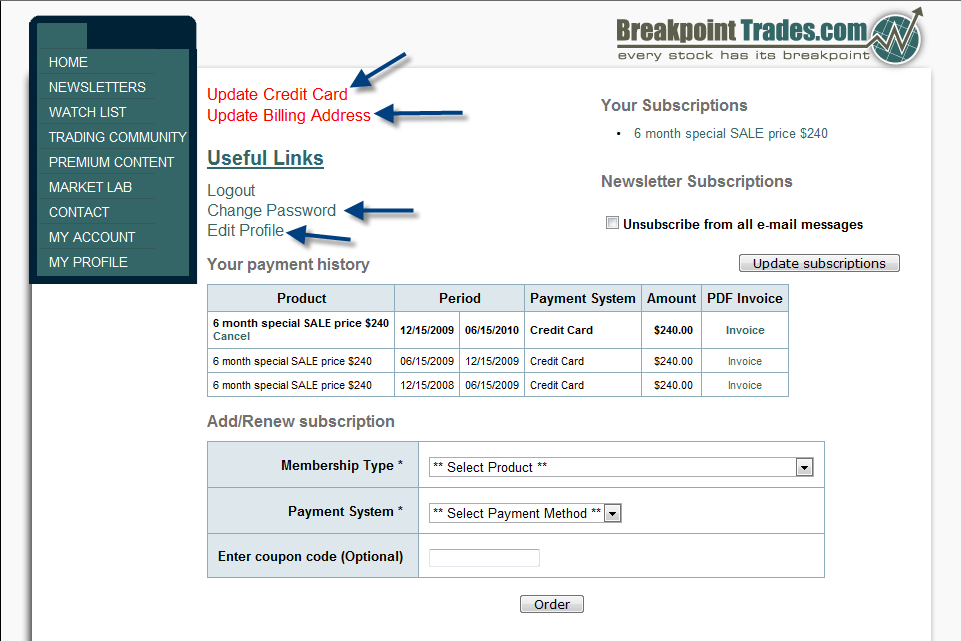
There are two ways to reach the section which will allow you to edit all your account data. After logging into the website you will be directed to the Members Home page and by selecting the Manage Subscriptions link you will be directed to your Membership page. The other option is if you are already on the website, you can select the Members Home tab from the left hand side navigation bar and will be directed to the Members Home page where you can select the Manage Subscriptions link. From the Membership page you will see links for changing your Credit Card Information, Billing Address, Passwords and Profile. You can also manage your memberships from this page including adding and canceling memberships (these are addressed in other questions).
Do I have to sign up again to keep my account from becoming inactive?
Breakpoint Trades has an auto-renew program which automatically re-bills your credit card (PayPal) for a subscription equal to the one you currently have. If you have taken advantage of a special rate via a coupon or special offer those are one time only and any future renewals will be at the regular stated website rates listed on the Sign-up page. You are re-billed at 12 a.m. EST the last day of your membership in order to ensure you do not have a loss in coverage.
My account has expired but I want to resign-up, how can I do this?
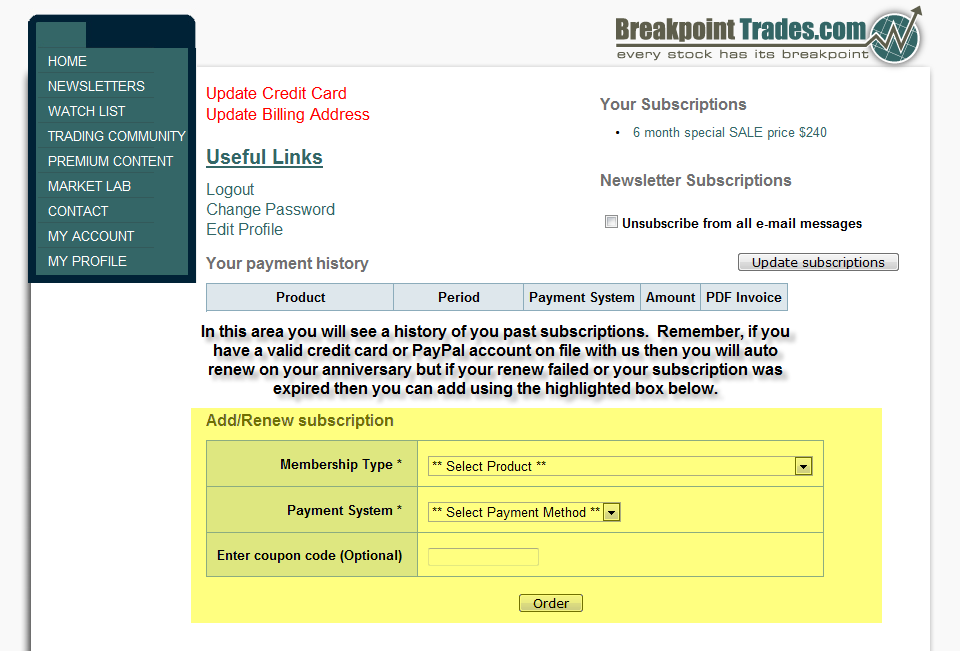
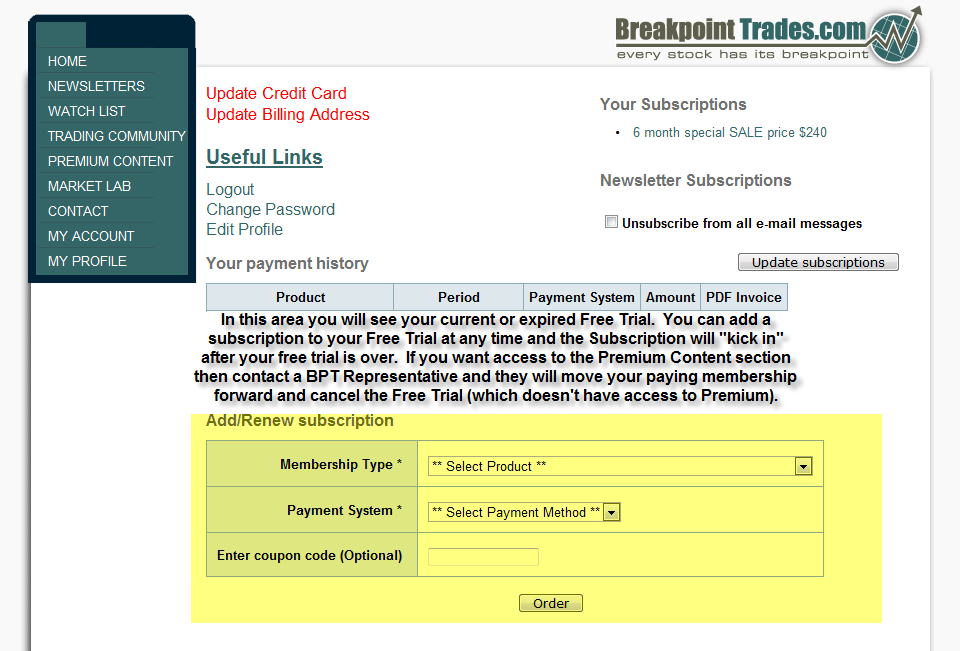
Since we have an auto-renew feature at BPT, your account should only expire if you had dated information on file (address, credit card, etc.) or if you canceled your subscription. Please verify that one of these were the case and if not then first contact BPT management to look into your situation. If one of those scenarios above was the case then first log into your account. After logging in you want to select your Manage Subscriptions link from the Members Welcome page. This will take you to a page where you should see ADD/RENEW subscription where you can select membership type and payment method. This will take you to a page where you will need to insert your credit card information(or paypal) and then click to process the transaction. See a step by step image display below.
What is the best way to reach a BPT Representative?
Whether it be questions about your Account, the Mechanical Systems, Technical Support or anything else regarding the website you can always contact a Representative by using the Contact Page. This page will also ask you to try and specify what your question or comment is concerning and then will direct your message to the appropriate party. You can access the Contact form by clicking here.
How do I cancel my membership?
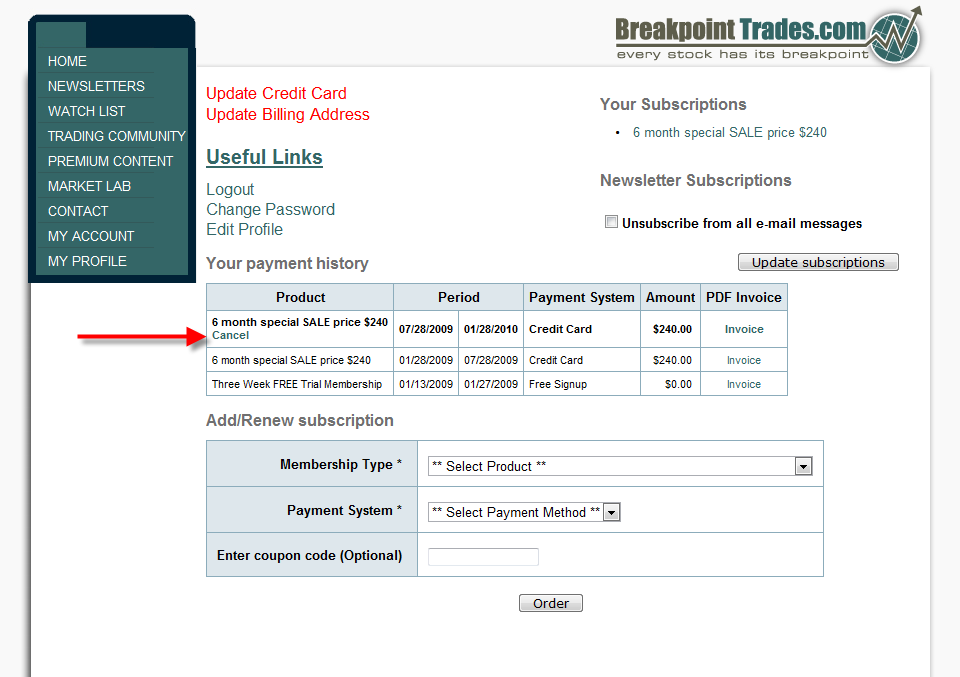
A member can easily cancel their membership from the Membership page. You first access the membership page by selecting the Manage Subscriptions link from the Members Home page. After reaching the Membership page (the same page you use to edit all information) you will find the current membership located under the "Your Payment History" section and then click the Cancel option directly underneath that membership. Please note that canceling a membership at BPT disables the auto-renew feature, so your membership will remain active until the last day which you paid for and then will expire. Please also note that the membership must be canceled per the Terms & Conditions statement each members agreed to upon signing up. Members should receive a pop-up message and an email verifying their cancellation.
What are the Terms & Conditions of the site and where can I access them?
Each member is required to agree to the Terms & Conditions of the website upon signing up to a membership. You would have either clicked an I agree box or types your name as it appeared. To access a copy of the Terms & Conditions page you can view the website's disclaimer from the Home Page or by clicking here.
How do I upgrade my Trial membership?
You can upgrade your rial membership at anytime throughout the Trial. The paying membership will "kick in" after the Trial is over. If your not taking advantage of the Mechanical Systems posted in the Premium Content section (which is blocked to members on a Trial) then this will work for you but if you are interested in the Premium Content section then contact a BPT Representative after upgrading your account and we will manually move your paying membership forward so you take advantage of the section immediately.
In order to access the page for adding a membership you will first log in using your Trial Username and Password and then either select the Manage Subscriptions link from the Members Home page or if you are already logged into the website and on a page then you can select the Members Home tab on the left hand sive Navigation bar. If your Trial is expired then upon logging in you will be taken directly to the membership page to sign-up and will not need to go through the previous step. Once on the membership page you will see a history of your past membership as well as a section to "Add/Renew Subscription". Under the "Add/Renew" section select the subscription and payment options you desire and follow through the directions until your order is complete.
The Newsletter
How often are the newsletters updated on the site?
Currently the website does a Newsletter nightly Monday through Thursday and then posts multiple Newsletters on Sunday night. Occasionally if a trading day was not very active or if not much has changed from the previous day we will do an abridged recording. The latest Newsletter can always be obtained the very second it becomes available by going to the Newsletters page.
How do I access a Newsletter?
In order play a newsletter you
must go to the Newsletter Page and move your mouse over the Date for
which you are looking to access. You will see a pop-up that verifies
the Newsletter by stating the title and date. You then select the
title and the newsletter will play. This
feature is helpful because on some days we will post more than one
Newsletter depending on the volatility of the market of if we are
featuring a new product etc. Also the Weekend Newsletter is almost
always in 2 parts so this feature allows you to choose which one you
will watch first. If there is only one Newsletter for a given day (which very often is the case during the week) then by also just clicking on the date box you will retrieve the latest Newsletter.
What is the "View Live Chart" link in the Newsletters and why can I not access the intraday ones?
The "View Live Chart" link is one that we are very happy to have as a part of our Newsletter. The only Newsletters would be Chart images, like they are today, but often members would ask if there was a way to get the links to the actual chart so they can monitor them on their own intraday instead of waiting for an updated image in the next newsletter. We use to often post the links on the Trading Community or email them to requesting members in order to help but now you can click the link to be taken directly to the chart and then this link can be saved on your side and viewed whenever you please. There are a few caveats to this and I will try and outline them here:
1. We use stockcharts.com for much of our posted content and while the charts that have a daily, weekly or monthly timeframe can be viewed by all, intraday charts require a stockcharts membership.
2. We use a set databse for creating our charts which means that it is more likely we will edit the links with updated notes and not crate a new link. Meaning if you are following a S&P index chart we posted it is likely that when we add new notes to the chart it will be done on the same link as the one you saved so the next time you refresh the notes will be there. While that is the likely case, it is not the always case and there could be times where a link becomes invalid. The probability of this increases when we look at invidual stocks as opposed to indexes and lastly increases again when we consider intraday vs long term charts. Reason being the databse is not unlimited so "house-keeping" needs to be done and generally the shorter time frame and individual stocks are what will be deleted.
3. Not every chart we post can have a live link because we do post and do analysis outside of the stockcharts.com platform and those charts might only be able to have the image posted (not just charts but also tables or statistics).
Trade Ideas
Are the Trade Ideas a model portfolio?
Breakpoint Trades does not currently offer a model portfolio. The Watch List is a set of our favorite set-ups that we feel have the best chance for offering a profitable trade. We find these trades after searching through hundreds of charts across multiple sectors each night. Unfortunately, due to time constraints, we are not able to update the Watch List in the same manner in which we trade it and member's are generally left to make their own trading decisions. The Watch List is geared to more swing trade ideas and we will often use stops that maybe larger than an individuals preference as well as we may take profits earlier than a member would. Due to these situations the percent numbers are hypothetical and may not be reproduced by a member. If a member has a stock from the Watch List we do accept emails and general questions through the Blog in order to assist with their decisions.
How often are Trade Ideas updated?
Currently all of the ideas published on the Watch List (Trade Ideas) are from the Nightly Newsletters and therefore the Watch List is updated each night (Mon-Thurs & Sun) after the publishing of the Newsletter.
Should I look to play all the stocks on the Trade Idea?
No. We cannot always play all the stocks on the list. The goal is to do basically do the homework for you in looking through hundreds of charts in order to find the set-ups that look to provide the highest probability of follow through. Each person should review the ideas we post and choose which ones best fit their trading style, risk tolerances, preferences and then trade them as they see fit.
Where can I learn about all the Trade Idea features?
For some detailed information (in video format) about the Watch List please click here.
The Trading Community
Cannot access intra-day charts under the Dynamic Links section, why?
To view the intraday charts that we post using the stockcharts.com system require that you be a member to stockcharts. We frequently post pictures of those links.
Can I interact with some members but not the whole board?
Yes. The the Trading Community has a Private Message feature which allows you to interact with members without having to post to the general Trading Community. The system acts much like an email account allowing you to have an Inbox to store your favorite messages and an Outbox to track which messages you have sent.
Are there ways to find my favorite posts?
The Trading Community has a feature where, if you see a post that you like, you can click the star (which is located in the same bar as the Reply button and is next to the Delete button) and this post will be saved in a section called My Favorites. You can easily retrieve the old post by clicking the My Favorites button under the Tools section on the Trading Community.
Do I have to search through every post to find the one I am looking for?
No. The Trading Community has a feature located on the left hand side titled Search. The search box will allow you to look for posts using keywords, member names, From and/or To fields. Other features to help find posts are a separate section to follow only management's posts and multiple threads based on Topics so you can view everything being said or only the posts regarding a top your interested in.
How can I tell who is a member and who is a BPT admin?
Not all posts are created equal and you may only want to focus on posts from the BPT Team. All commentary from any official BPT administrator or representative will display their name in RED.
What are the Pop-Up Alarms in the Trading Community?
Below is an answer that was posted on the Trading Community by Matt. You can access the direct post on the Trading Community using the Search feature.
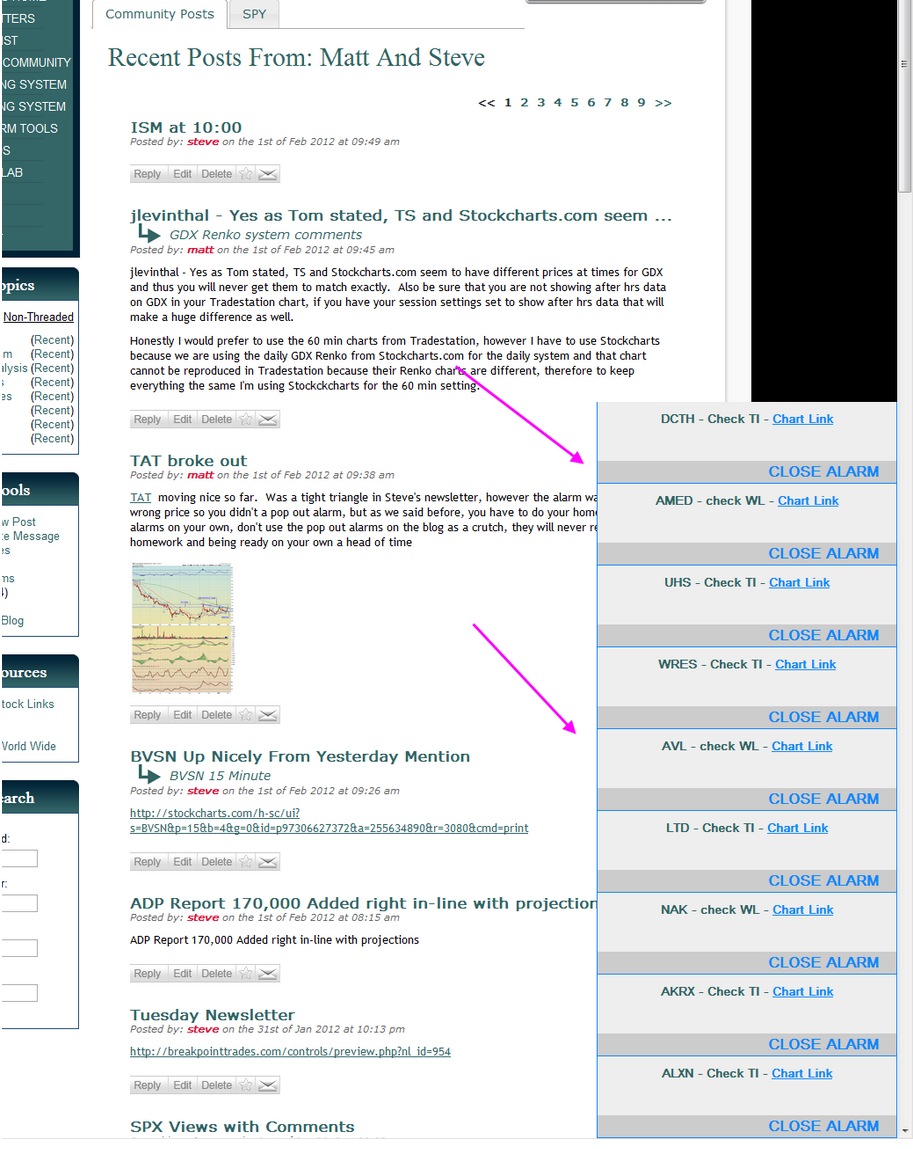
Below is an image from the 'Trading Community' Blog from Feb 1st showing a bunch of pop out alarms for our trade ideas from that day.
Apparently there is some confusion as to how these alarms work and why they go off at certain prices, therefore let me to to clarify how it works. First off Steve and I do not manually send these alerts out, they are preset ahead of time near trendline resistance or breakpoint areas. We display if we have an alarm set for a Trade Idea as well as what levels we have set on the Watch List page. These alerts work just like the alarms that you can set in your brokerage account. Also these alarms are NOT buy and sell signals, they are simply alarms to put you on alert you that a breakpoint is approaching and to get your attention. You should not automatically buy or short a stock based on an alarm, it's simply to alert you that the stock is nearing a breakpoint and to put you on attention to look at it. The alarms work just like the alarms work that you can set in your brokerage account.
The alarms are always set early, below the breakpoint resistance for longs, so that you have time to look at them and react and decide if the stock looks ready to breakout or not, does it have good volume, does it fit your criteria or not. Again the alarms are not intended for you to just automatically buy or short a stock, it's to alert you to have a look at it, and works just like alarms that you can set in your own brokerage account.
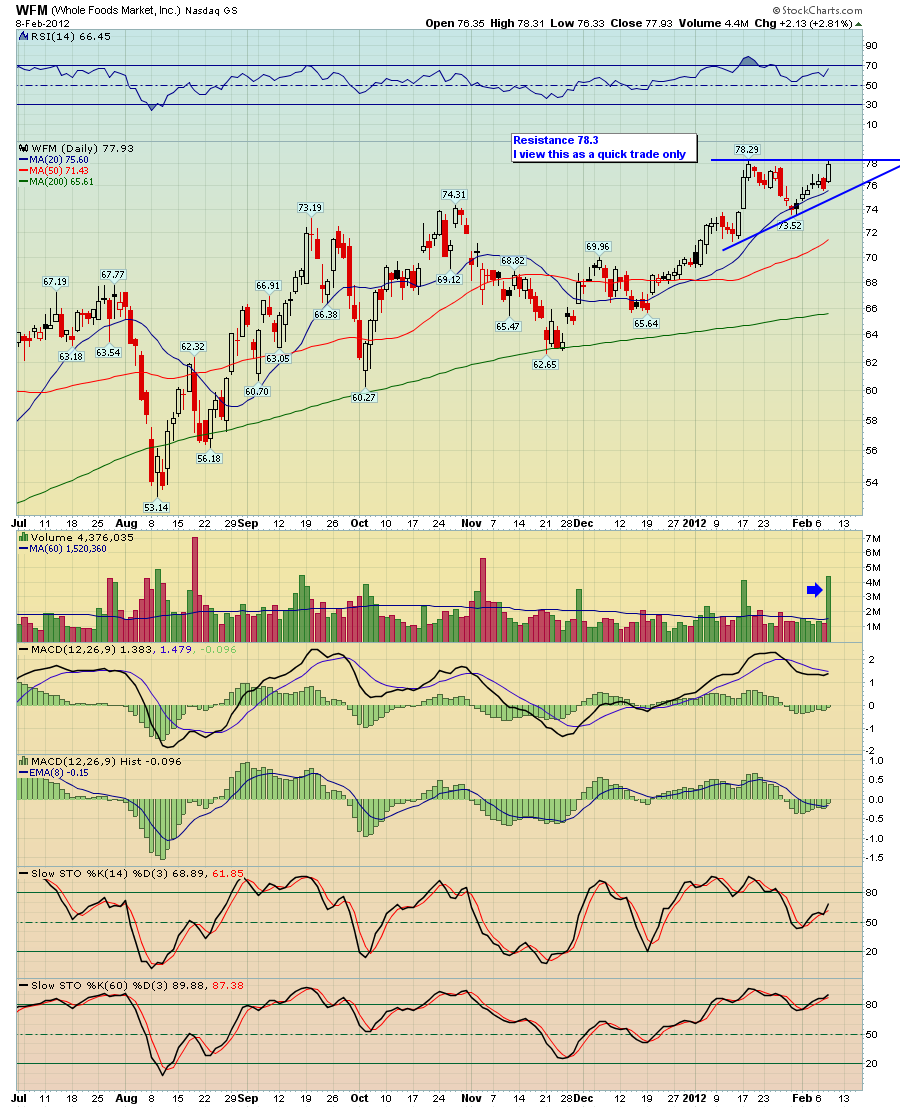
For example, let's say that we have a stock with an breakpoint resistance at 78.3 (see WFM chart below as an example), I might set an alarm to go off at 78.23 or 5 - 10 cents below the resistance.
Also as you know, we often advocate buying the long ideas inside the pattern when there is a good reason to do so, such as the stock has pulled back to some logical support and thus your stop can be really tight, vs waiting for the stock to breakout and you have a higher risk. The reason I bring this up is because we cannot set alerts for support areas for Longs, we can only set alerts near resistance for Longs, therefore this is why you MUST do your home work ahead of time and NOT totally rely on these alerts.
The most successful way to play our trade ideas is to do some homework on your own, spend 15 min at night or in the morning before the market opens, write some notes down in your trading journal/notebook, such as which ones are your favorites and add notes about support/resistance, and volume. That way when an alarm or alarms go off intra day, when you see it you are already prepared and you know what the pattern is, and if you like the stock or not! Basically just like in school, do your homework and study, and you will do well on the tests. Trading is the same way, if you don't do any homework and watch TV all night, and then come in the market every day unprepared, then when alerts go off, you are like a deer in the headlights.
Steve and I spend all day in here on the blog and these nightly newsletters take us 3 - 4 hrs a night, so we put in a LONG day, we are doing all the hard work for you, all we ask is that you spend 10 - 15 min a day to prepare, and you will see this returned 10 fold back to your accounts!
The Mechanical Systems
Do you send alerts for the listed systems?
We currently do not offer guaranteed alerts for any of the systems listed in the Mechanical Systems section except for the BPGDM System (and this could change). Our goal will be to send as many alerts as we can but as we plan to continue to expand the section we have to ask members to use the information we post to monitor the systems themselves.